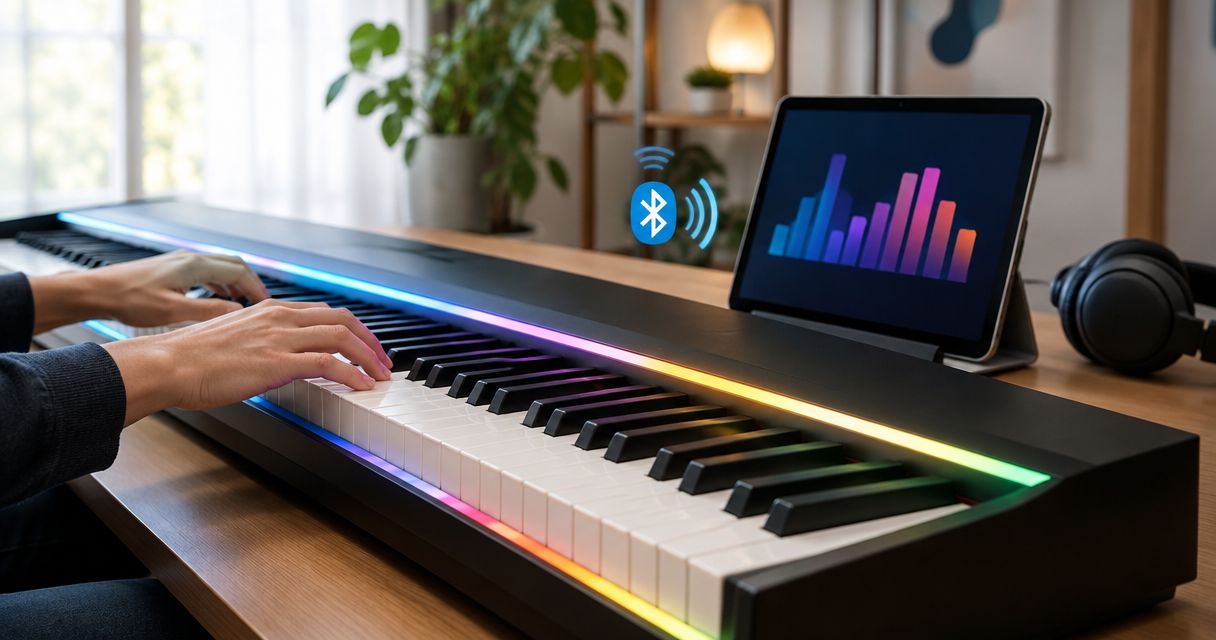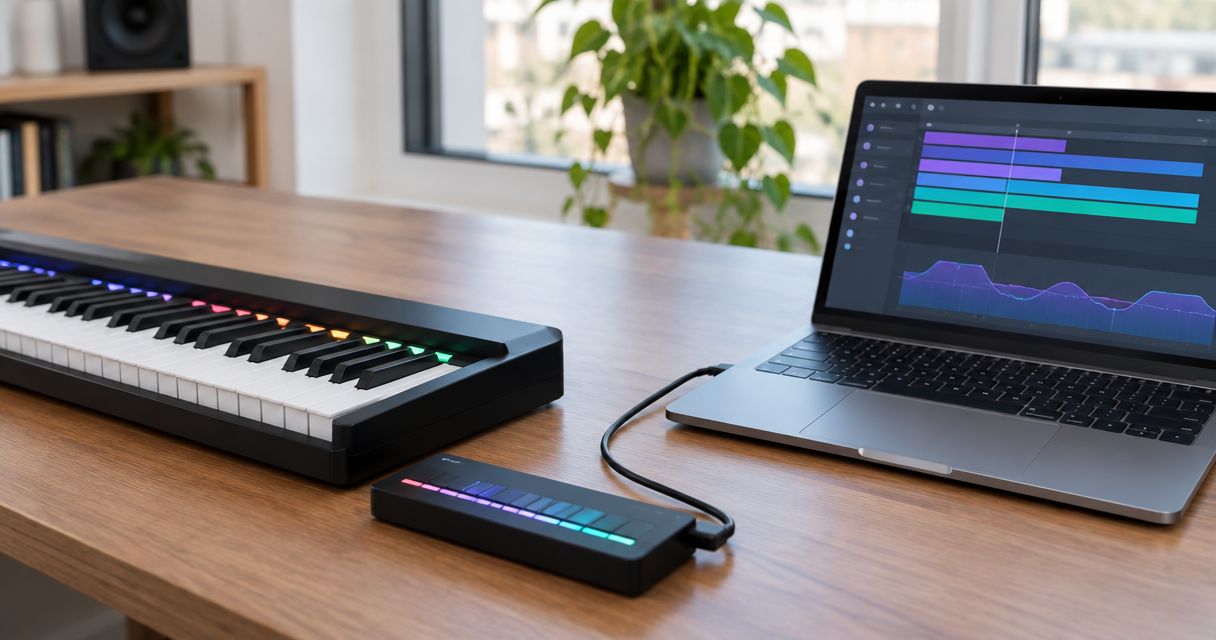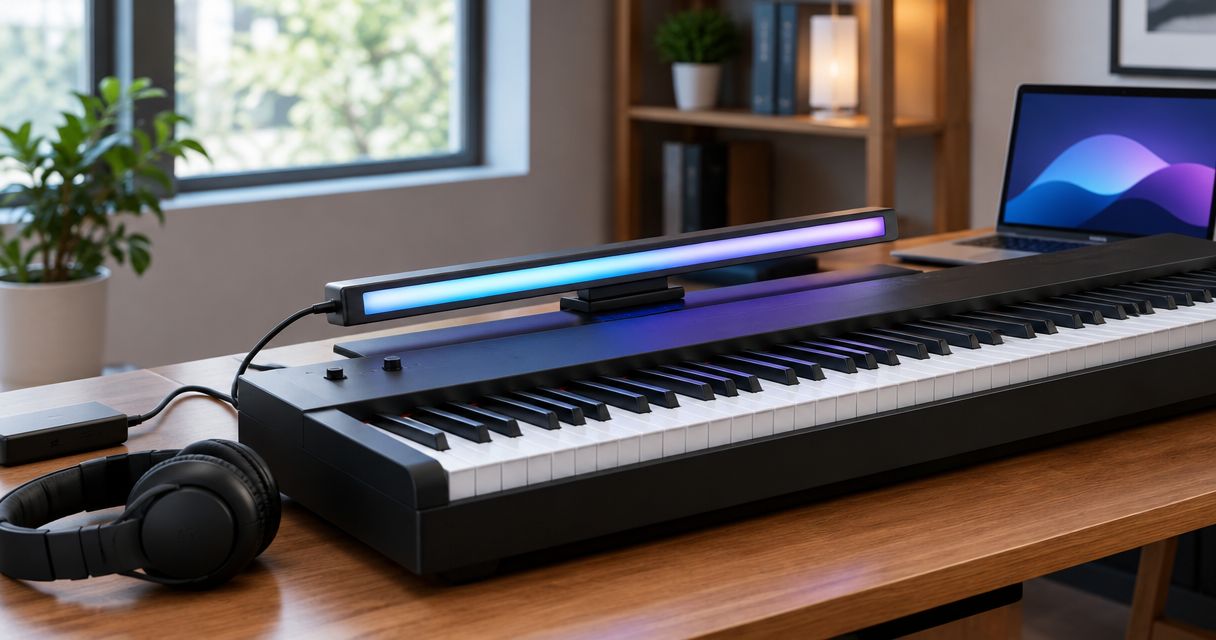
Instead of manually matching every MIDI note to a piano key, prepare a piano-only file and load it through a learning app that explicitly supports MIDI import and LED playback. This MIDI file to LED piano workflow covers file preparation, connection checks, light alignment, and repeatable practice in 2026; confirm import support before editing your song.
- A MIDI file to LED piano workflow requires compatible file import, a working connection, and correctly aligned lights.
- Pianoledshop suits beginners who prefer app-synced light guidance; verify custom MIDI import before choosing a workflow.
- Export only the notes you intend to practice, then check pitch, timing, and note endings.
- Keep an editable source file so you can simplify difficult passages without rebuilding the song.
Why this matters
A MIDI file stores musical instructions, not a recording. Its note events describe what plays and when, but a downloaded arrangement can contain drums, bass, strings, and other parts that do not belong in your piano exercise.
Pianoledshop’s LED-guided learning system is best for hobbyists and beginners who want app-synced visual guidance. The Pianoledshop offering centers on following lights to learn songs. Custom-file import is a separate capability to verify, not something the presence of an app establishes.
The practical advantage is a visible target for the next note. The limitation is equally clear: lights do not communicate fingering, phrasing, or posture by themselves. Treat a successful 2026 setup as a working practice aid, not proof that an arrangement teaches every aspect of playing.
Before you start
- Confirm the file route. Check the current learning app’s documentation for user MIDI import, accepted file types, and playback through the LED system. If that route is unsupported, use the app’s supported song library instead; renaming a file will not add compatibility.
- Gather the equipment and access. Have your keyboard, LED system, app device, documented connection accessories, and a MIDI editor that can inspect and export note events. Use a MIDI file you created or have permission to use.
- Check the non-obvious gotcha: musical parts are not hands. Separate tracks can contain overlapping instruments, while both piano hands can share a single track. Inspect the actual notes before deleting tracks or assuming the file already separates left and right hands.
For the hardware stage, use the Piano LED Plus connection guide for an 88-key MIDI keyboard alongside your equipment’s current instructions. Check the exact keyboard model rather than treating its key count as a compatibility guarantee.
Source file preparation
The first configuration unit is the musical content. Work on a copy so every simplification remains reversible, and keep the original arrangement separate from the practice export.
Prepare the piano part
- Open the MIDI file in your editor. Listen while inspecting the note display, track list, and instrument assignments.
- Identify the part you want to learn. Select the melody, accompaniment, or piano arrangement deliberately rather than keeping every audible instrument.
- Remove unwanted parts from the practice copy. Confirm the export excludes them; muting playback and excluding exported events are not necessarily the same operation.
- Inspect the lowest and highest notes. Compare them with your keyboard’s actual playable range and the LED system’s documented coverage.
- Export a short test passage before processing the whole song. Start with 4 bars containing a recognizable melody and at least one held note.
Expected result: the exported passage contains only the notes you intend to play, within the range your setup can represent.
Check timing and note endings
Listen to the test passage again without looking at the lights. Check that repeated notes remain distinct, chords begin together where intended, and sustained notes end at sensible points.
Do not remove pedal information automatically. MIDI note duration and sustain-pedal messages serve different purposes; deleting either can change the musical result. Keep or simplify them according to the passage you are trying to practice.
For a 2026 practice file, preserve tempo changes only when they serve your lesson. A steady exercise is easier to diagnose than a passage with several intentional speed changes, but do not flatten expressive timing in the original source.
Connection and light alignment
The second configuration unit is the route between your app, LED hardware, and keyboard. File playback, light output, and keyboard input are separate checks; success in one does not prove the others work.
Establish the documented connection
- Follow the connection sequence specified for your exact LED system and keyboard. Use the documented ports and accessories rather than substituting an audio connection for MIDI.
- Open the learning app and select the appropriate device wherever its instructions require a device selection. Use the current interface labels shown on your device.
- Test a song already supported by the app before importing your own file. This separates connection problems from file problems.
- Check keyboard input separately if your practice mode requires it. Press a key and verify the response described in the app’s instructions.
- Check the lights across the keyboard, not just near the center. Confirm that the physical alignment remains consistent from one end to the other.
Expected result: supported song playback produces the intended light guidance, and any required keyboard-input response works independently.
Verify pitch rather than octave names
Use a recognizable reference key and compare its sound, physical position, and illuminated position. MIDI applications can use different octave-numbering conventions for the same pitch, so an octave label alone is not enough to establish an error.
Correct a consistent offset before practicing. If every light points to the neighboring key, inspect placement and documented alignment settings. If only some passages seem wrong, return to the file and inspect their notes instead of shifting the entire setup.
This verification separates three different problems: the wrong notes in a file, the wrong mapping in a configuration, and the right mapping with incorrectly positioned hardware.
Import and practice configuration
The third configuration unit is the song inside the learning app. Follow this stage only after the current app documentation confirms that your file type can be imported and used for LED playback.
Load the test passage
- Use the app’s documented file-import method. Select the exported practice file, not the editable project from your MIDI editor.
- Open the imported song and inspect any available preview. Confirm that the opening matches the passage you exported.
- Start playback without playing along. Watch whether the first illuminated notes match the file’s intended pitches and order.
- Choose a manageable practice speed using the app’s supported controls. For a passage suited to that tempo, 60 beats per minute is a starting exercise setting, not a required system specification.
- Complete 2 passes: observe the first, then play the second. Check the opening, a repeated note, a chord, and the final note release wherever those events occur.
Expected result: the imported passage displays the intended notes in order, at a speed you can follow, with no unexplained pitch offset.
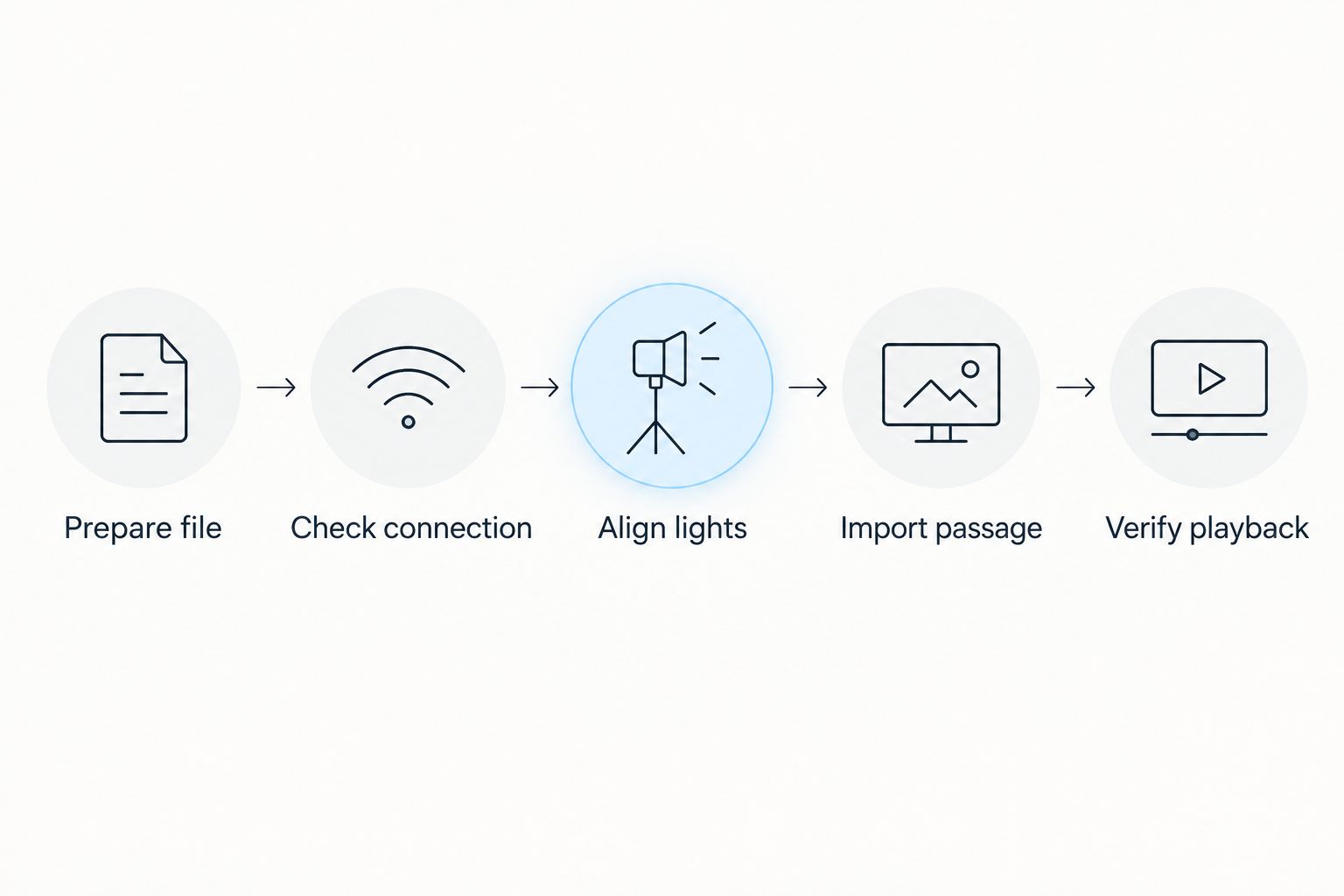
The workflow is a sequence of checks, not a single upload. Keep each stage separate so a failed test points to a specific part of the setup.
Expand the verified passage
Once the short passage works, export the full practice arrangement using the same preparation choices. Test its beginning, a middle passage, and its ending before settling into a session.
Keep a brief setup note with your 2026 practice materials: source filename, exported filename, retained parts, and any transposition. Record the actual connection method too. This gives you a useful reference when a later revision behaves differently.
Do not change the connection, arrangement, and practice settings simultaneously. Change one element, retest, and keep the version that produces the intended result.
Second workflow: update a simplified arrangement
A revised-file workflow is useful when the first import works but the music is too difficult. Edit the source arrangement, export a new practice file, and use the app’s documented import process again; do not assume that saving in your editor updates an existing imported song.
Choose the version by learning objective, not by how closely its light pattern resembles a full recording.
| Practice version | Best for | Advantage | Limitation |
|---|---|---|---|
| Melody only | Beginners finding a tune | Fewer simultaneous notes to follow | Leaves out accompaniment and two-hand coordination |
| One-hand part | Isolating a difficult hand | Focuses attention on a specific musical role | Does not establish balance between both hands |
| Complete piano part | Combining prepared parts | Preserves the selected arrangement | Adds coordination demands and denser light cues |
Reimport the edited version
- Duplicate the editable source and name it for its practice purpose, such as melody practice or left-hand practice.
- Remove only the material outside that purpose. Listen again to confirm that the remaining part still makes musical sense.
- Export a distinct MIDI filename. Keep the earlier export until the replacement passes its playback check.
- Import the revision through the supported route and identify the new version before starting practice.
- Repeat the pitch, timing, and ending checks used for the original test passage.
Expected result: you have a clearly identified easier version without losing the full arrangement.
Use a simplified part to solve a specific difficulty, not to hide it indefinitely. After the passage becomes manageable, return to the complete piano part and check whether the skill transfers.
Troubleshooting the MIDI-to-LED workflow
Diagnose the smallest failing stage first. A useful 2026 troubleshooting note names what worked immediately before the failure rather than describing everything as a connection problem.
The app rejects the file
Check the documented import format and confirm that you exported MIDI rather than an editor project or audio recording. Try a short, simple export through the same supported route; changing the filename extension does not convert the contents.
Lights work for a library song but not your import
Keep the working connection unchanged. Inspect the exported file for unwanted parts, notes outside the supported range, or a mismatch with the app’s documented import requirements. Re-export the short test passage before retrying the whole arrangement.
The lights point to the wrong keys
Compare a reference pitch with its physical key and illuminated position. A consistent shift calls for checking placement, mapping, or transposition; isolated wrong notes call for inspecting the arrangement. Do not transpose a correct file to compensate for misplaced hardware.
Notes appear to stay on too long
Inspect note lengths and sustain-pedal events in the source file. Then compare the imported playback with a supported library song. If both show the same abnormal behavior, stop editing the arrangement and follow the equipment’s documented reset or reconnection procedure.
The song works, but you cannot follow it
Reduce the musical demand before changing hardware settings. Prepare a shorter passage or one-hand version, then choose a manageable speed if the app supports speed adjustment. Dense lights can reflect a difficult arrangement rather than a technical fault.
Customize your workflow
Build a repeatable folder structure around musical goals: original arrangements, editable practice copies, and verified exports. Keep filenames descriptive enough that you can distinguish a melody exercise from a complete version without opening either file.
For Pianoledshop learners, the next useful step is matching the practice material to the player. Choose a passage with a clear learning objective: locating notes, coordinating a chord change, or joining two prepared hands.
In your 2026 practice routine, alternate guided playback with an attempt that does not depend on watching every light. The next move is to test recall, not just complete another guided run. Keep light guidance available to check a mistake, then try the passage again.
FAQ
How do I turn a MIDI file into an LED-guided piano song?
Prepare a piano-only MIDI file, import it through an app that explicitly supports custom MIDI and LED playback, and verify the illuminated pitches. Test a short passage before exporting the full arrangement.
Can I import any MIDI file into Piano LED Plus?
Do not assume every MIDI file is supported. Confirm the current app’s import requirements and LED playback support before preparing a custom arrangement.
Can I use an MP3 instead of a MIDI file?
An MP3 cannot substitute for MIDI note events in a MIDI-import workflow. Audio-to-MIDI transcription is a separate process, and its output needs musical checking before practice.
Why does my MIDI file light up too many notes?
Inspect the file for accompaniment, doubled parts, and other instruments that were included in the export. Create a practice copy containing only the musical part you intend to play.
Do I need separate MIDI tracks for each hand?
Separate tracks are not a universal requirement for MIDI playback. They help you prepare hand-specific exports, but any in-app hand-selection feature must be confirmed in the app’s documentation.
Why are the lights an octave away from the expected notes?
Check actual pitch and physical key position before relying on octave labels. Different octave-numbering conventions, transposition, and mapping errors require different fixes.
Will editing my MIDI file update the imported song automatically?
Do not assume an imported song updates when its source changes. Export the revision and follow the app’s documented process for importing or replacing a song.
One last thing
Keep the short passage that first passed every check. A known-good file is more useful for diagnosis than another complicated song: replay it before changing cables, settings, or an arrangement that previously worked.
For Pianoledshop practice sessions, that reference passage separates setup maintenance from learning music. Once it works, spend your attention on the part you want to play.